.png)
.png) 7 months ago
170
7 months ago
170


Stephanie Watel is a writer for DualShockers. She has over three years of experience writing about all things video games, from news to lists to in-depth guides in a variety of genres. Her strongest niches start with RPGs and also include platformers, horrors of every variety, cozy builders and sims. She also enjoys a good looter shooter and the occasional gacha adventure.
Games have been her biggest passion since getting a Nintendo 64 for Christmas in the 90's and she carries that passion into all of her published content. With DualShockers, she specializes in crafting polished, informative, and enjoyable gaming guides that help pave a clear path for players and don't skimp on the details that matter most.
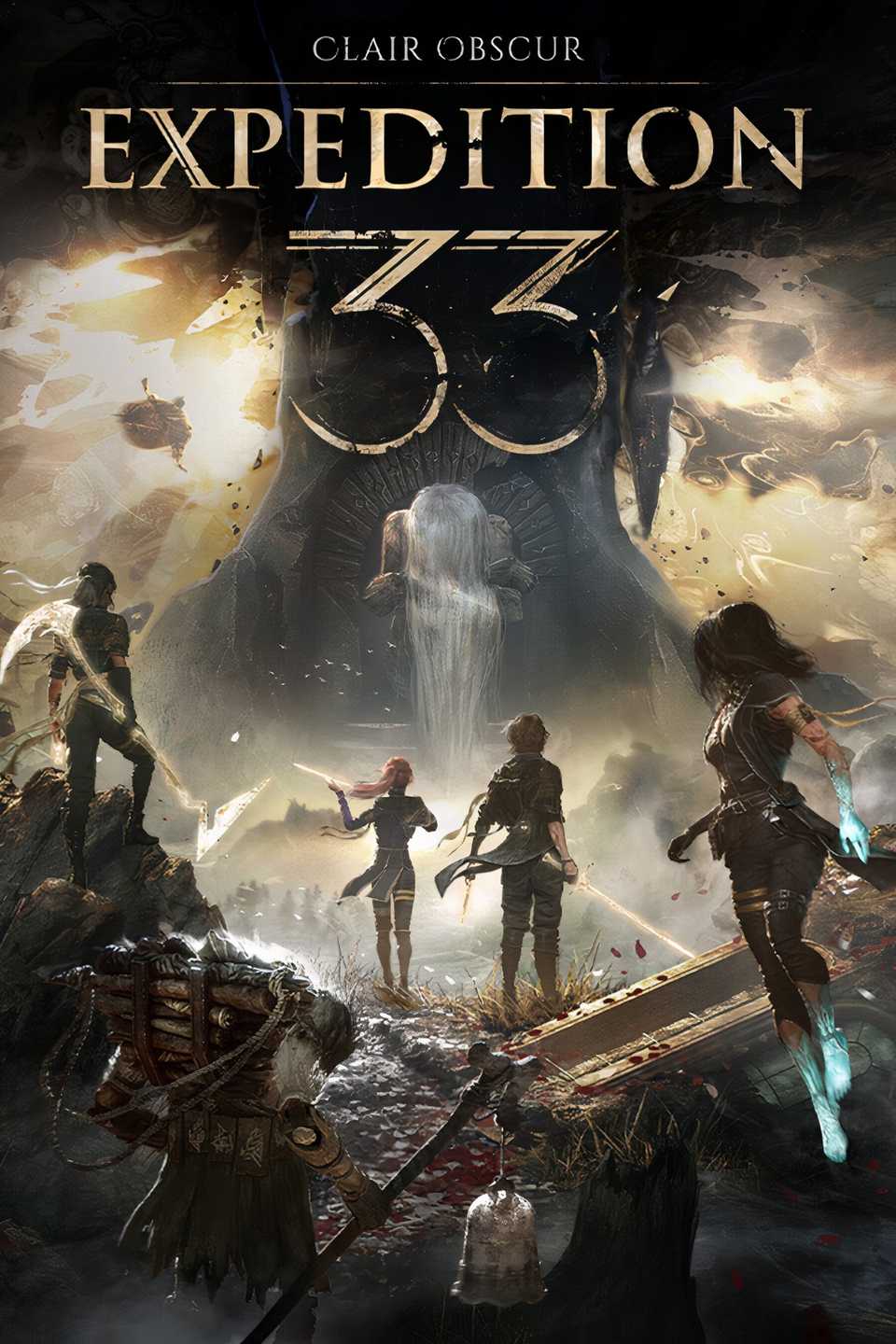
Sandfall Interactive's Clair Obscur: Expedition 33 has kept fans around the world enthralled with its artistically epic story and gameplay since its release in early 2025. Since the game went on to claim several accolades at the Game Awards, the development team extended their thanks to the fanbase in a big way with a free DLC update (1.5.0) that included a surprising amount of content.
One particular feature among the new content was the long-awaited addition of Photo Mode, allowing players to paint their own memorable shots. If you're wondering how it works, here's how to unlock and use Photo Mode in Clair Obscur: Expedition 33.

Related
How to Unlock Photo Mode

To unlock Photo Mode in Clair Obscur: Expedition 33, you first need to download the Thank You update (1.5.0), which was spontaneously released late on December 11, just after the annual Game Awards (where Sandfall Interactive's debut IP took home Game of the Year).
Once your game is fully updated, then Photo Mode will be made available to use at any point in your journey, be it the prologue or on the steps of the story's dramatic finale. This highly-anticipated feature is also available across all current platforms, from console to PC.
How to Use Photo Mode

To access Photo Mode in Clair Obscur: Expedition 33, you need to go to your Pause Menu (not the Party Menu) and look for the 'Photo Mode' option second from the top of the drop-down list. Select it, and the game will enter its Photo Mode per the exact location where your party currently is.

Here you'll find many of the fundamental bells and whistles for an in-game photo mode, such as adjusting the camera angle higher or lower, rotating the angle, zooming in and out, and you can reset the shot to its default position if you find your angle straying too far off from its subject.
You may notice that the sensitivity of the camera movement in Photo Mode is pretty high, which can prove a bit challenging when you're going for a very specific shot. However, to counteract this, there's also a 'Slow Mode' feature which allows you to move the camera much slower for more precise shots, especially if you're going for those dramatic close-ups.

Even better, Photo Mode can even be used during combat, whether you're facing run-of-the-mill Nevrons or epic optional bosses. If you manage to pause the fight at the perfect moment, you can then capture it with Photo Mode, and all the same adjustment features will still be available.
Furthermore, you don't necessarily need to be inside one of the map's many dungeon-style locations to use Photo Mode. You're free to use it anywhere on the Overworld map, which can make for some thrilling shots with Esquie and/or a pose with one of the game's overworld bosses in the background.
Released April 24, 2025
ESRB Mature 17+ / Blood and Gore, Strong Language, Suggestive Themes, Violence
Developer(s) Sandfall Interactive
Publisher(s) Kepler Interactive

Next
Clair Obscur: Expedition 33: How to Unlock Verso's Drafts (Location)
Here's how to reach this surprise addition to the Continent in Clair Obscur Expedition 33.



![ELDEN RING NIGHTREIGN: Deluxe Edition [FitGirl Repack]](https://i5.imageban.ru/out/2025/05/30/c2e3dcd3fc13fa43f3e4306eeea33a6f.jpg)
 English (US) ·